


When you’re managing larger or more complex jobs that require additional oversight and coordination, SmartList acts as your centralized job board to keep everything on track.
Accessing SmartList
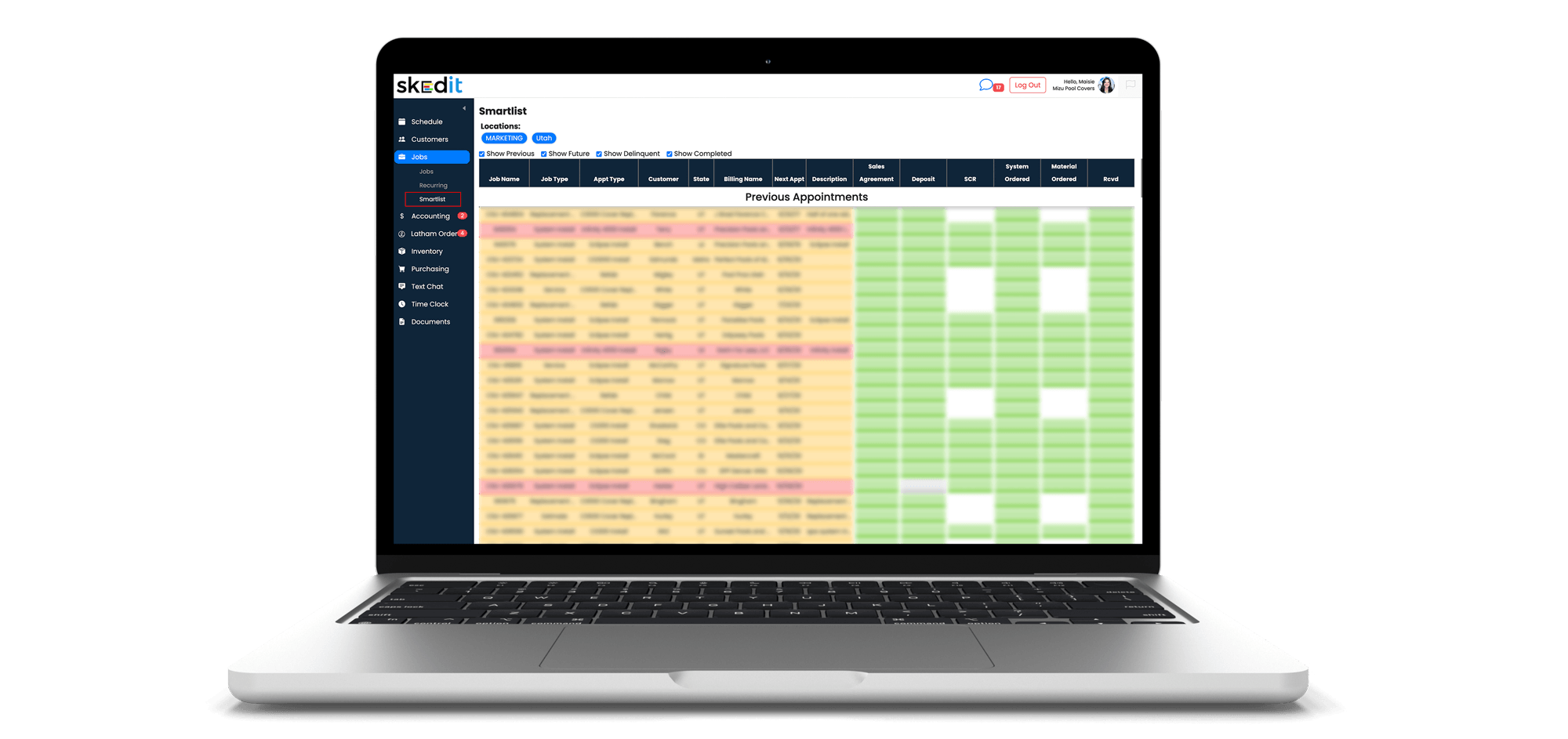
You can access SmartList by navigating to the Jobs tab in the left menu and selecting SmartList at the bottom. This view provides an overview of all upcoming jobs along with custom requirements that matter most to your business—such as permits, deposits, materials received, draws collected, products ordered, and more.
How It Works
Each job appears as a row with easy-to-use checkboxes under each requirement column. When an item is complete, simply check it off and it will turn green, indicating the job is ready to move forward in that area.
You can double-click any job to open the work order page you normally see from the schedule. Below the work description, you’ll find additional checkboxes next to the Locked and Confirmed buttons that correspond directly to your SmartList requirements. Checking them here will automatically update the job’s status on the SmartList.
Many teams assign a dedicated employee to manage SmartList, coordinating with team members responsible for permits, materials, or approvals to ensure nothing is missed.
How to Set Up SmartList
- Go to Settings (bottom-left toolbar)
- Select Appointments → SmartList Questions
- Add the questions you want to track on the SmartList job board
- Mark questions as inactive if they’re no longer needed
- Use View Order (1–100) to control the left-to-right display order
- Use the Short Question option to keep the list readable when tracking many requirements
If you have any questions about setting up or optimizing your SmartList, reach out to your Skedit account rep for help.